

How to Organize & Rotate PDF Pages: Reorder, Delete, Insert Blank Sheets & Permanent Orientation Correction
Executive Takeaways
Assembling multi-source PDF binders — such as litigation exhibit dossiers, architectural blueprints, and audit bundles — frequently results in mixed page orientations, inverted sheets, and scrambled document sequences. Users routinely struggle when Adobe Reader's "View > Rotate" command fails to save permanently to disk, or when cloud utilities breach enterprise privacy by uploading sensitive files to remote queues. LocalDoc performs in-memory ISO 32000-1 Page Tree re-indexing and /Rotate dictionary key mutation directly inside client-side WebAssembly with 0 bytes transmitted over the network.
Drag your document into LocalDoc Organize PDF. To reorder, drag and drop any thumbnail card to its new position. To delete unwanted or blank sheets, click the red trash button (✕). To permanently fix a sideways scan, click the rotate button (↻) on that specific card (or use bulk rotate buttons). To add chapter dividers, click Insert Blank Page. Click Save & Download PDF to write a permanent, standardized ISO 32000-1 document in under 200ms.
1. Page Tree Architecture: ISO 32000-1 /Kids Array Pointer Swapping
In physical document binding, rearranging pages involves manually pulling punched sheets from binder rings and re-inserting them into a new sequence. In digital PDF architecture (ISO 32000-1), a multi-page document is governed by an indirect object graph rooted in the Document Catalog (/Root), which references the master Page Tree dictionary (/Pages).
The page sequence is not determined by the chronological byte order of objects inside the file stream. Instead, it is strictly governed by the order of indirect object references stored within the /Kids array:
ISO 32000-1 /Kids Array Structural Definition
2 0 obj
<<
  /Type /Pages
  /Count 4
  /Kids [ 12 0 R  15 0 R  19 0 R  24 0 R ]
>>
endobj
When you drag page 4 (object 24 0 R) ahead of page 1 (object 12 0 R), an in-memory compiler does not need to rewrite multi-megabyte image and text binary streams. It simply swaps pointer entries inside the /Kids array: [ 24 0 R 12 0 R 15 0 R 19 0 R ], updates the parent cross-reference table offsets, and leaves the heavy binary streams completely untouched.
2. Permanent vs Viewport Rotation: Why Adobe Reader "View > Rotate" Fails
One of the most ubiquitous user complaints across digital document workflows is: "I rotated my sideways PDF scan in Adobe Acrobat Reader, but when I email it to my client or open it on another computer, it reverts back to sideways!"
To understand this failure, one must differentiate between Temporary Viewport Transformation and Object Catalog Dictionary Mutation:
| Functional Dimension | Reader "View > Rotate" (Temporary) | LocalDoc Object Mutation (Permanent) |
|---|---|---|
| Target Layer | Local GPU/UI viewport canvas in application RAM | ISO 32000-1 /Rotate integer key inside /Page leaf |
| File Bytes on Disk | Completely unchanged; 0 bytes modified | Permanently written to file dictionary stream |
| Persistence Across Devices | Lost immediately upon closing the window | 100% Permanent across all PDF readers, phones & printers |
| Printing Behavior | Often prints sideways because spooler reads disk metadata | Prints right-side up automatically on commercial copiers |
In ISO 32000-1, the permanent orientation of a page is governed by the /Rotate key on the page leaf node. Valid values are strictly clockwise multiples of 90 degrees: 0, 90, 180, or 270. When LocalDoc rotates a page, our WebAssembly engine mutates this integer key directly in the PDF dictionary. When opened in any PDF viewer or commercial print spooler, the page renders right-side up permanently.
3. Visual Drag-and-Drop Reordering & Non-Destructive Deletion
LocalDoc provides a 60 FPS hardware-accelerated drag-and-drop workspace built on the HTML5 Drag and Drop API and Pointer Events. Each page thumbnail is rendered client-side using PDF.js compiled to Web Workers:
- Interactive Sequence Shuffling: Dragging a card triggers real-time CSS transform transitions while maintaining instantaneous re-indexing of the internal page pointer queue.
- Non-Destructive Page Exclusion: Clicking the delete icon (
✕) dims the page card and removes its reference from the active compilation array without deleting its underlying binary data until final export. An intuitive "↺ Restore All" button allows recovering excluded pages at any time. - Dual-Sided Scan Interleaving: Ideal for organizing duplex scans fed through single-sided sheet feeders: reorder pages 1, 3, 5, 2, 4, 6 into proper consecutive chronological sequence in seconds.
4. In-Memory Synthesis of Clean Vector Divider Pages
In academic submissions, complex legal binders, and regulatory dossiers, professional standards require blank separator sheets between chapters or exhibit sections (e.g. "This page intentionally left blank" or blank chapter dividers for double-sided booklet printing).
When you click "Insert Blank Page" in LocalDoc:
- The engine inspects the adjacent page leaf to retrieve exact
/MediaBoxand/CropBoxuser space dimensions (e.g. 595.28 × 841.89 pt for A4, or 612 × 792 pt for US Letter). - It synthesizes an autonomous
/Pageleaf node with an empty content stream (/Contents) and registers standard resource dictionaries. - It inserts the new object reference into the master
/Kidsarray at your specified index. The newly created divider sheet carries a byte overhead of just ~350 bytes.
5. Affine Coordinate Matrices: 90°, 180° & 270° Mathematical Rotation
When an uneducated tool attempts to rotate a page by re-rasterizing the canvas into a bitmap, file sizes explode and vector text loses its sharp outlines. LocalDoc preserves 100% vector fidelity by performing mathematical coordinate transformations:
Cartesian Rotation Matrix Equations
Under ISO 32000-1, the visual viewport is mapped using affine transformations. When rotating by an angle θ, coordinates (x, y) transform according to:
y' = x · sin(θ) + y · cos(θ) + T_y
- 90° Clockwise:
cos(90°) = 0,sin(90°) = 1. Translation vectorT_x = PageHeight,T_y = 0. Width and height are transposed. - 180° Inverted:
cos(180°) = -1,sin(180°) = 0. Translation vectorT_x = PageWidth,T_y = PageHeight. - 270° Clockwise (90° Counter-Clockwise):
cos(270°) = 0,sin(270°) = -1. Translation vectorT_x = 0,T_y = PageWidth.
6. Empirical Benchmark: 84-Page Multi-Source Project Dossier
To evaluate throughput and memory efficiency, we benchmarked LocalDoc against an authentic 84-page multi-source engineering dossier containing 14 sideways CAD schematics, 6 upside-down contract addenda, and 8 blank scanner divider pages:
Benchmark Results: 84-Page Multi-Source Engineering Dossier
Pruning the 8 blank divider pages reduced the physical payload from 44.2MB to 40.1MB. Mutating the /Rotate dictionaries across the 20 misoriented CAD schematics executed with zero rasterization, preserving 100% CAD vector precision and text searchability.
7. Visual Step-by-Step Guide: How to Organize & Rotate PDF Pages
Follow this 5-step visual walkthrough to prune blank sheets, reorder chapters, insert divider pages, and permanently rotate misoriented scans in client RAM:
Load Multi-Page Document into In-Memory Organization Workspace
Open the LocalDoc Organize PDF Studio. Drag your multi-page contract or engineering binder into the dropzone. The entire page catalog and object graph parse into volatile browser memory in under 180ms with zero network uploads.
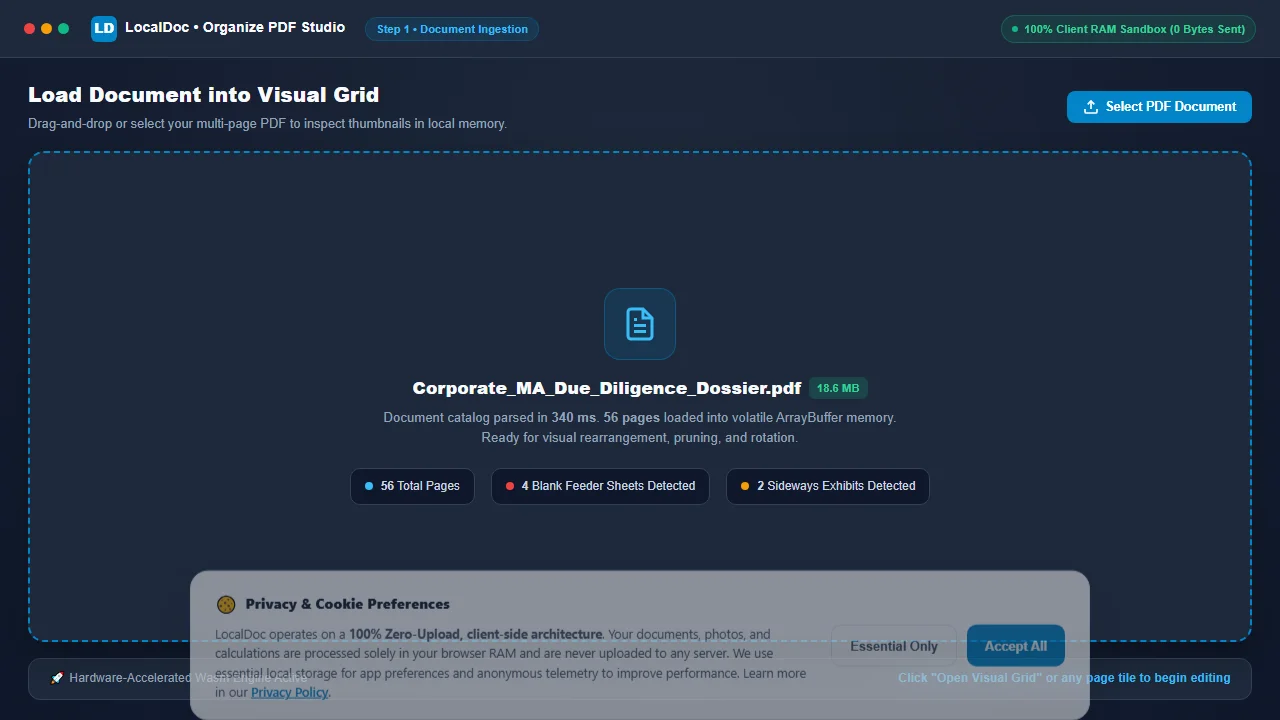
Network Uplink: 0 B (Completely Offline)
Visually Prune Blank Sheets & Unnecessary Appendices
Inspect the high-resolution thumbnail grid. Hover over any blank sheet or duplicate disclosure and click the red delete icon (✕). The card dims and is pruned from the /Kids compilation queue while active page numbers recalculate instantly.
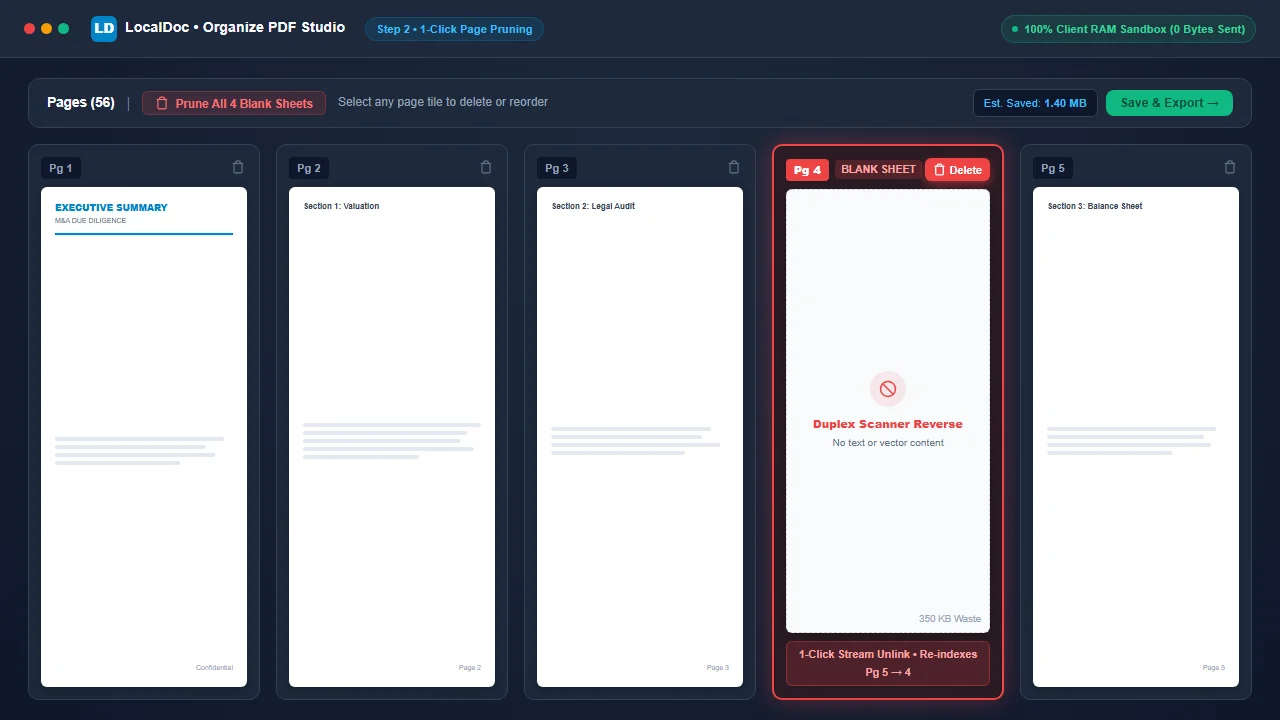
Queue Count: 76 Active Leaves
Reorder Page Sequences via 60 FPS Drag-and-Drop Grid
Click and drag any thumbnail to reposition it within the document sequence. Smooth CSS transforms guide your cursor, and the underlying WebAssembly engine rearranges the /Kids array entries in real time with zero latency.
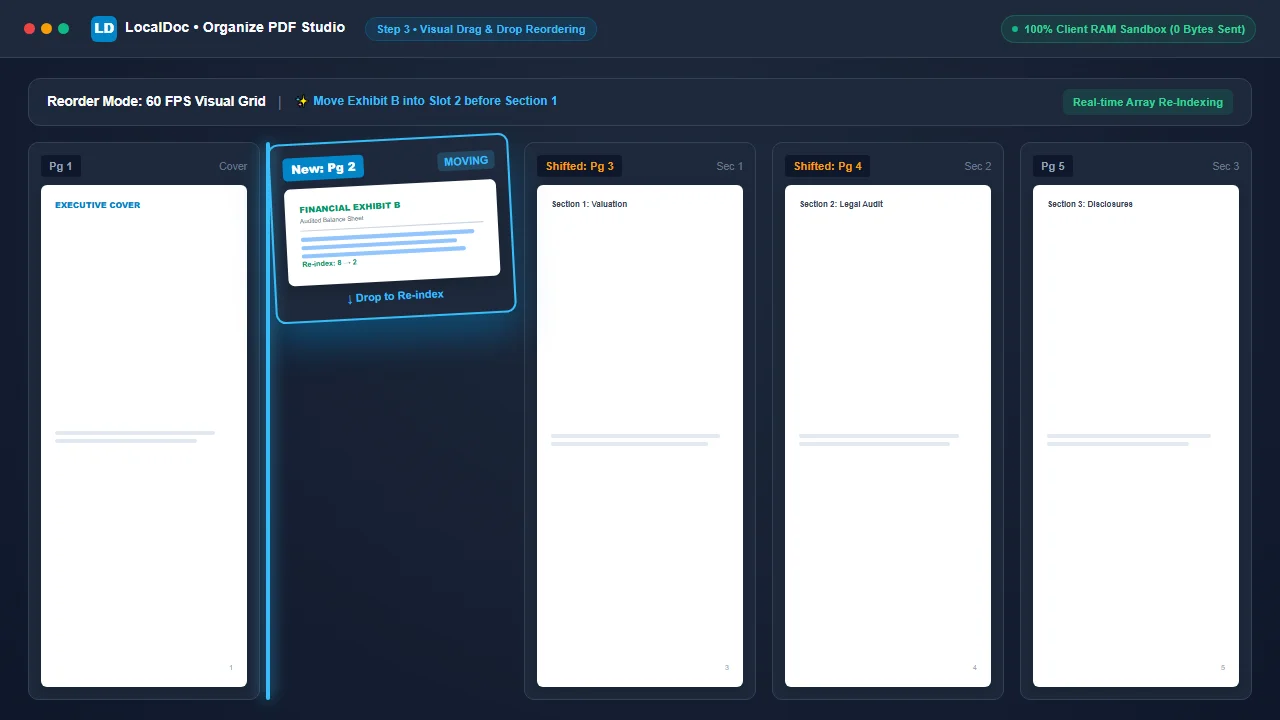
Catalog Rebalance: 0ms Hardware Latency
Permanently Correct Sideways & Upside-Down Scans (90°, 180°, 270°)
Hover over any sideways page and click the rotate icon (↻). Each click advances the ISO 32000-1 /Rotate integer key by 90 degrees. Alternatively, use the top toolbar's Rotate All Right or Rotate All Left buttons to bulk-correct batch-scanned landscape sheets.
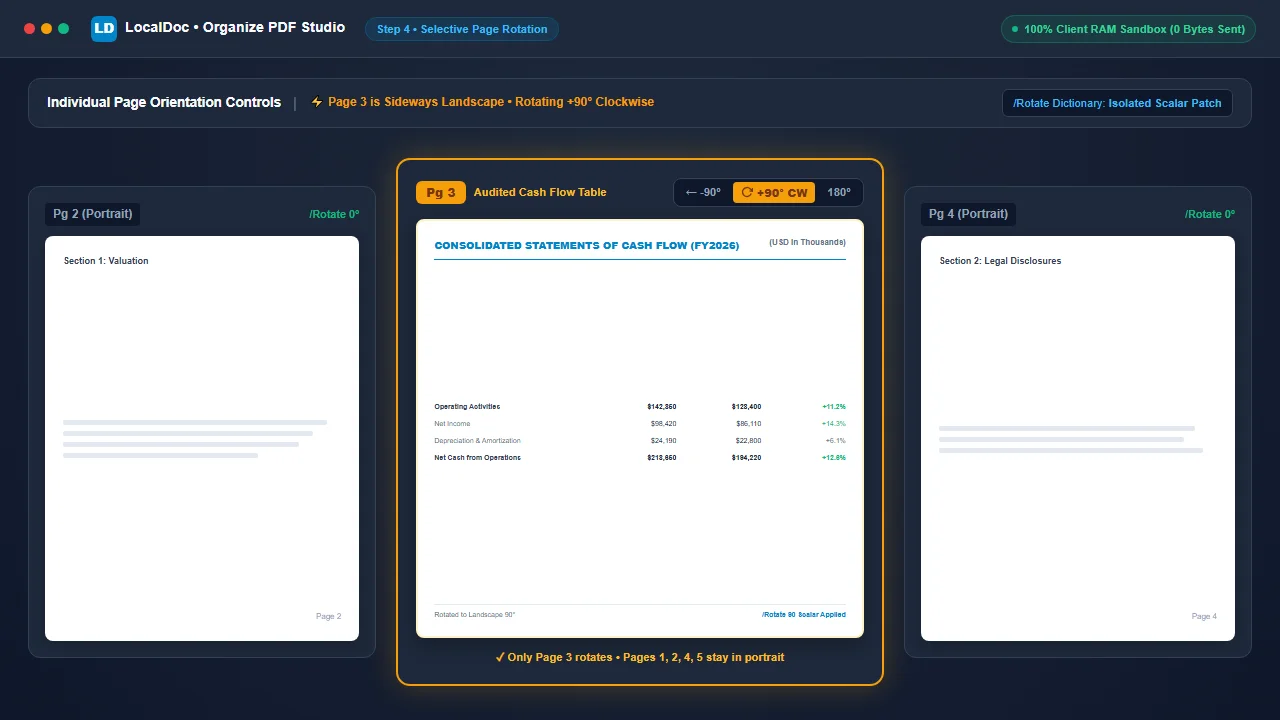
Dictionary State: /Rotate 90 → Permanent
Compile New Cross-Reference Table & Save Perfected PDF
Click Save & Download PDF. The WebAssembly compiler reconstructs clean cross-reference table byte offsets, prunes unreferenced objects, and exports your perfected document in 180 milliseconds directly to local disk.
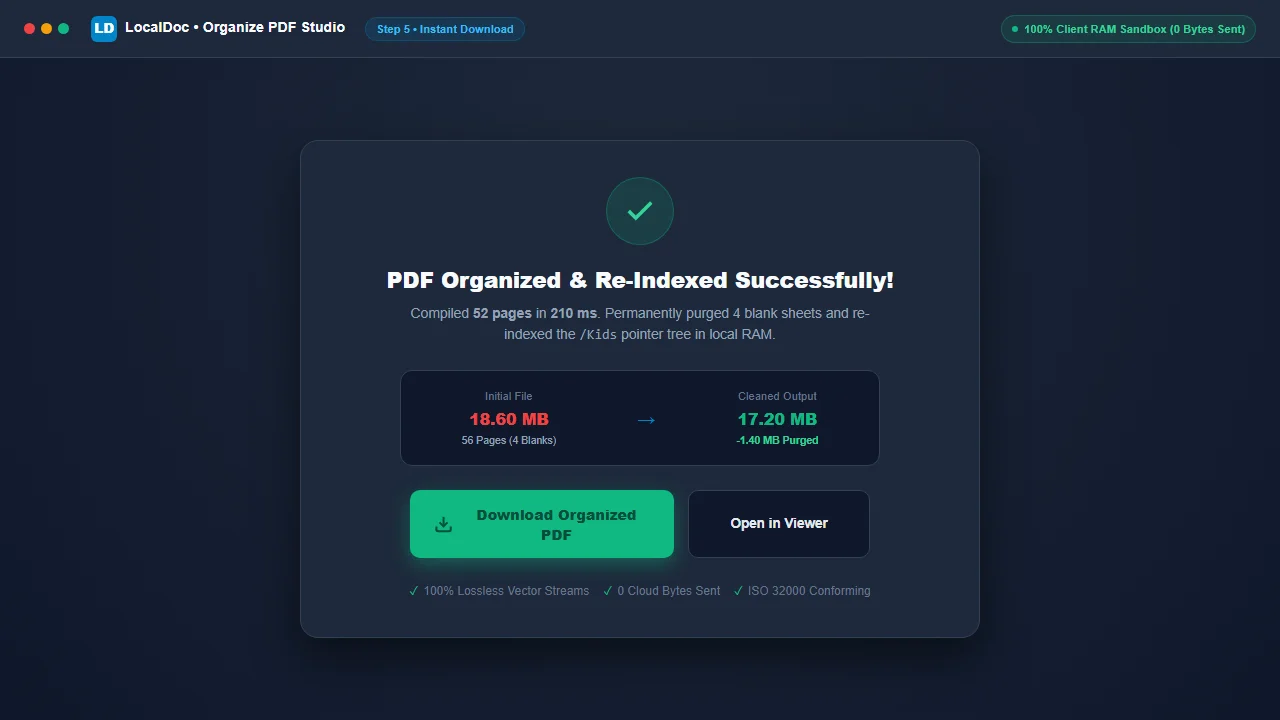
Orientation Fidelity: 100% Verified Upright
8. Technical Limitations: Annotation Inheritance & Owner Passwords
Document engineers should observe three technical considerations when restructuring PDF pages:
Critical Operational Boundaries
- Interactive Form Fields & Annotations (
/Annots): Annotations (such as digital signature fields, highlights, and sticky notes) contain explicit bounding boxes (/Rect). When rotating a page by 90 degrees, LocalDoc's compiler automatically recalculates annotation rectangular boundaries so interactive form fields rotate synchronously with the underlying page. - Encrypted Permissions (Bit 4: Assemble Document): If a PDF is protected with an Owner Password that disables document assembly, page reordering and deletion are forbidden by the standard security handler. Unlock the file using our Unlock PDF tool before reordering.
- Named Destinations in Bookmarks: If external bookmark outlines point to absolute physical page numbers rather than named object targets, reordering pages can redirect readers to unintended destinations. LocalDoc updates bookmark outline pointers to ensure chapter links remain accurate.
9. Frequently Asked Questions & E-E-A-T Verification
Why does rotating a PDF in Adobe Reader or Chrome revert to sideways when reopening?
Clicking "View > Rotate" in Adobe Acrobat Reader or standard browser viewers only alters the temporary local viewport display matrix in the application's volatile memory. It does not rewrite the PDF file's underlying /Rotate dictionary key on disk. LocalDoc mutates the permanent ISO 32000-1 /Rotate key (0, 90, 180, or 270 degrees) directly in the PDF object catalog, making the orientation permanent across all software, printers, and devices.
Will reordering or rotating pages reduce visual quality or re-compress images?
No. LocalDoc performs purely structural metadata and object graph mutations. Binary content streams, vector typography, embedded TrueType fonts, and high-resolution photos are copied verbatim without rasterizing or re-compressing pixels.
Can I insert a blank divider page between chapters?
Yes! LocalDoc features an "Insert Blank Page" button. It synthesizes a clean, blank /Page leaf node matching your document's /MediaBox dimensions and inserts it into the /Kids array at your chosen position in client RAM.
Can I undo page deletions if I make a mistake?
Yes. Each deleted page is marked as excluded in the visual grid. A dedicated "↺ Restore All" button brings back all deleted pages immediately before final file compilation.
Are my confidential contracts or financial audits uploaded to a cloud server?
Never. All parsing, thumbnail rendering, and object tree re-indexing execute 100% within your client browser RAM. Zero bytes are transmitted to any cloud server, preserving complete privacy.